
Interview editors
A recorded conversation has a strong music bed under the answers.
Create a clearer dialogue starting point before cutting the interview.
music remover from audioVideo audio cleanup
A music remover from video helps separate unwanted background music from speech, interviews, lessons, and other useful audio. Start with a clip and take the next editing step with a focused audio workflow.

Hear the difference
This workflow focuses on a video as the source. The visual track remains the reference while the audio is prepared for dialogue, narration, or further post-production.
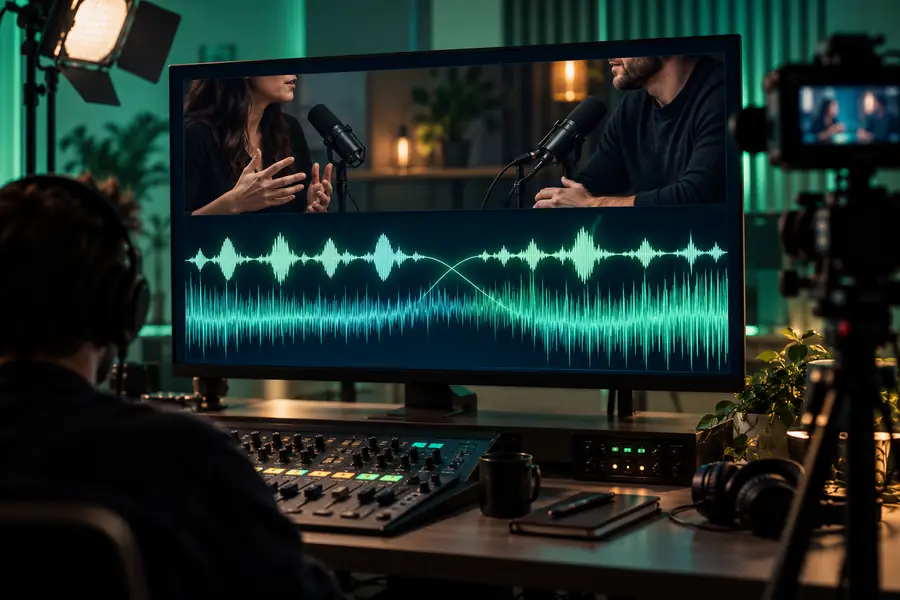
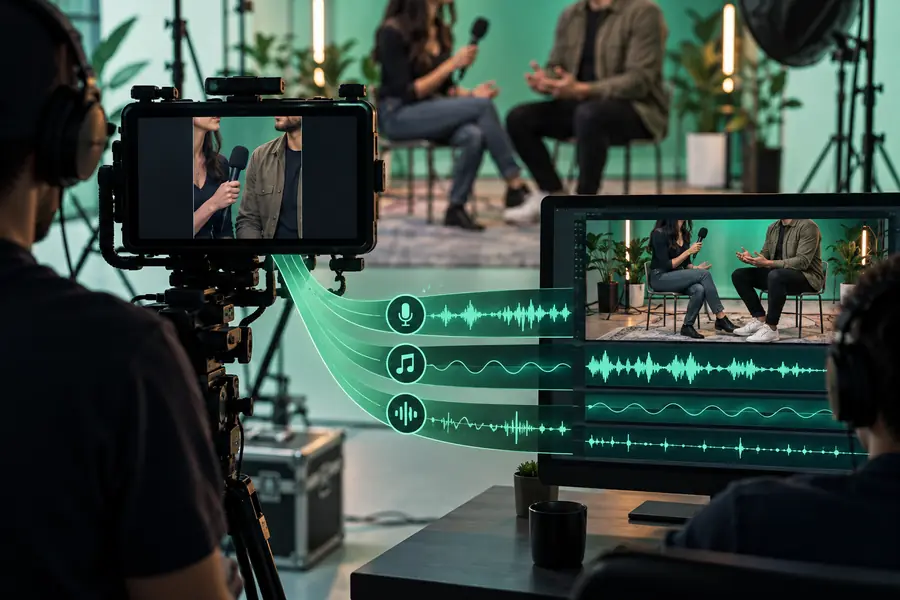 Original mix
Reduced music
Original mix
Reduced music
Drag the divider to compare the source and processed preview.
Built for real projects
Removing music from a video is useful when the soundtrack distracts from the message or when the spoken track needs a separate editing pass.
A recorded conversation has a strong music bed under the answers.
Create a clearer dialogue starting point before cutting the interview.
music remover from audioA lesson recording includes background music that competes with the instructor.
Make the spoken explanation easier to follow during the next edit.
music remover from audioA short clip needs a cleaner voice track for captions, remixing, or repurposing.
Prepare the speech for a new cut without rebuilding the whole video.
music remover from audioChoose the right source
Both routes begin with a mixed recording, but the starting file changes what you can review and what you should do next.
Video source
Audio source
Video source
A video containing picture and sound
Audio source
An audio file containing the mixed track
Video source
Clips where the visual context matters
Audio source
Projects already working in an audio editor
Video source
Check speech against the original scene
Audio source
Focus only on the sound result
Video source
Retained as the reference for the edit
Audio source
Not included in the source
Video source
Replace, mute, or re-edit the clip audio
Audio source
Mix the processed track into a project
Video source
You want to work from the original recording
Audio source
You already exported the sound separately
Example results
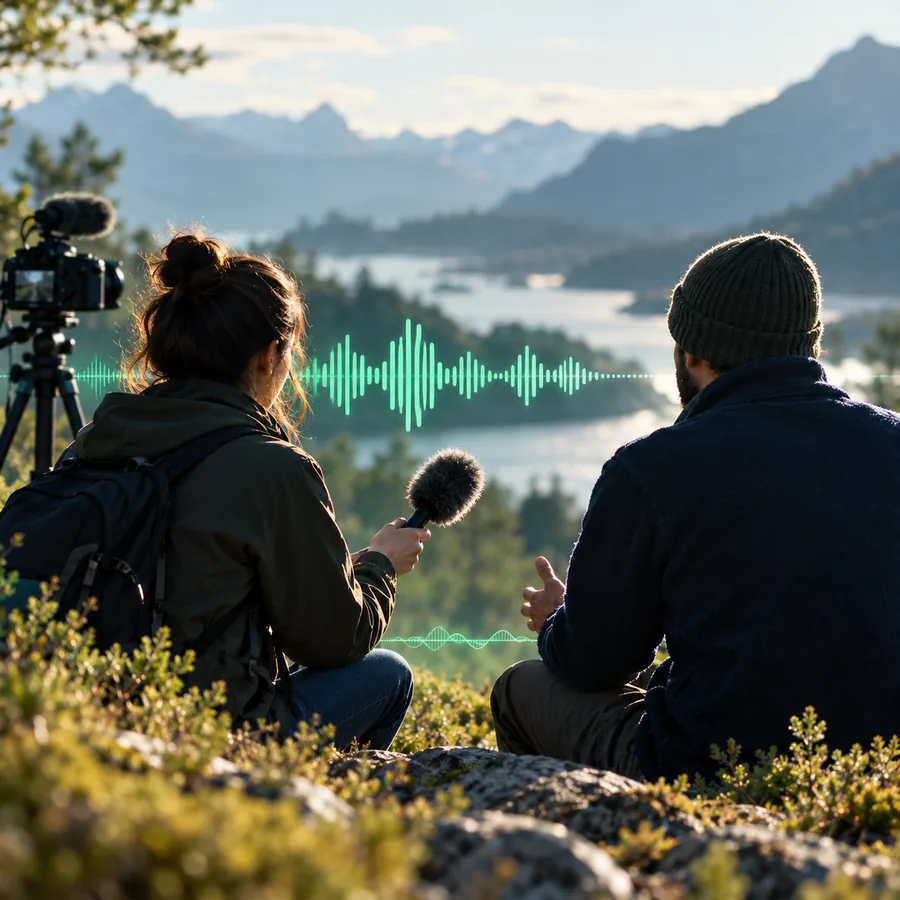
These examples show common source situations for spoken video. Treat each result as an editing starting point and listen for artifacts before delivery.
 1
Dialogue
1
Dialogue
 2
Presenter
2
Presenter
 3
Performance
3
Performance
Set expectations
Source separation is not the same as recovering a pristine studio recording. These limits help you plan a reliable review pass.
If music has already covered or distorted words, processing cannot recreate information that was never captured clearly.
WorkaroundUse the clearest source available and compare the result with the original clip.
Voice, instruments, effects, and room sound can overlap in the same frequencies, leaving some residue or artifacts.
WorkaroundAdjust the edit, shorten the affected section, or keep a small amount of natural ambience.
The cleanup step does not decide your cuts, captions, color, transitions, or final publishing settings.
WorkaroundExport or place the reviewed audio into the editor used for the rest of the project.
A music bed may be distracting in one scene but important in another, especially around transitions and emotional beats.
WorkaroundReview the processed clip in context before applying it across an entire project.
Simple workflow
Move from the original video to a reviewed audio result in three practical steps.
Choose the clip whose mixed soundtrack contains speech and unwanted or distracting music.
Explain what should remain prominent, such as spoken dialogue, narration, or a presenter’s voice.
Listen for clarity and artifacts, then use the result as the next input for your video or audio edit.
Ready for the next cut
Send your video through a focused cleanup workflow, then review the result before you make the final cut. It is a practical way to move from a crowded soundtrack toward more usable dialogue.
Clean my videoVariant FAQ
Answers to common questions about using a video as the source for music reduction and dialogue-focused editing.
It analyzes the soundtrack inside a video and aims to reduce unwanted music while keeping useful spoken or foreground audio more prominent. The result should be reviewed because overlapping voices, instruments, and effects can affect separation.
Yes, that is a common use case for this route. Start with the clearest version of the clip and describe whether dialogue, narration, or another foreground element should remain the focus.
The video is the starting source for the audio workflow, so the visual track remains useful as context for your edit. Check the resulting audio in your video editor before replacing or muting the original soundtrack.
Not always. Listen through the full clip for music residue, speech artifacts, abrupt changes, and scenes where the original mix was intentional, then make any final adjustments in your editor.